
Quiz Guide
Introduction
Viafoura’s Quiz experience lets publishers create interactive knowledge-based questions by designating one answer option as correct. After submitting a response, audience members can see whether their answer was correct once results are available based on the site’s configured Polls settings.
Quiz is a variant of Viafoura Polls and shares the same underlying implementation and configuration, including authentication requirements, anonymous voting, answer limits, close times, and independent rendering.
Quizzes can be used for trivia, knowledge checks, news and sports content, educational experiences, or any interaction where there is a defined correct answer.
Features of Viafoura’s Polls
- Real-time results: Quiz response counts update as audience members participate, with no page refresh required.
- Correct answer selection: Designate one answer option as the correct response when creating the Quiz.
- Clear answer states: The audience’s selected response and the correct answer are visually identified after submission.
- Drag-and-drop option ordering: Reorder quiz options during setup by dragging them into position. The order is preserved when the quiz is published.
- Flexible authentication: Configure whether users must be authenticated to vote or to view results, or keep participation open to anonymous visitors.
- Independent Rendering: Quizzes render independently on any page without requiring any other Viafoura product.
Enabling Quizzes
Quizzes are turned off by default and are not switched on automatically, including on sites that already use Polls. Reach out to your dedicated Customer Success Manager or submit a request via the support portal to have Quizzes enabled on your site. Polls must also be enabled on the site.
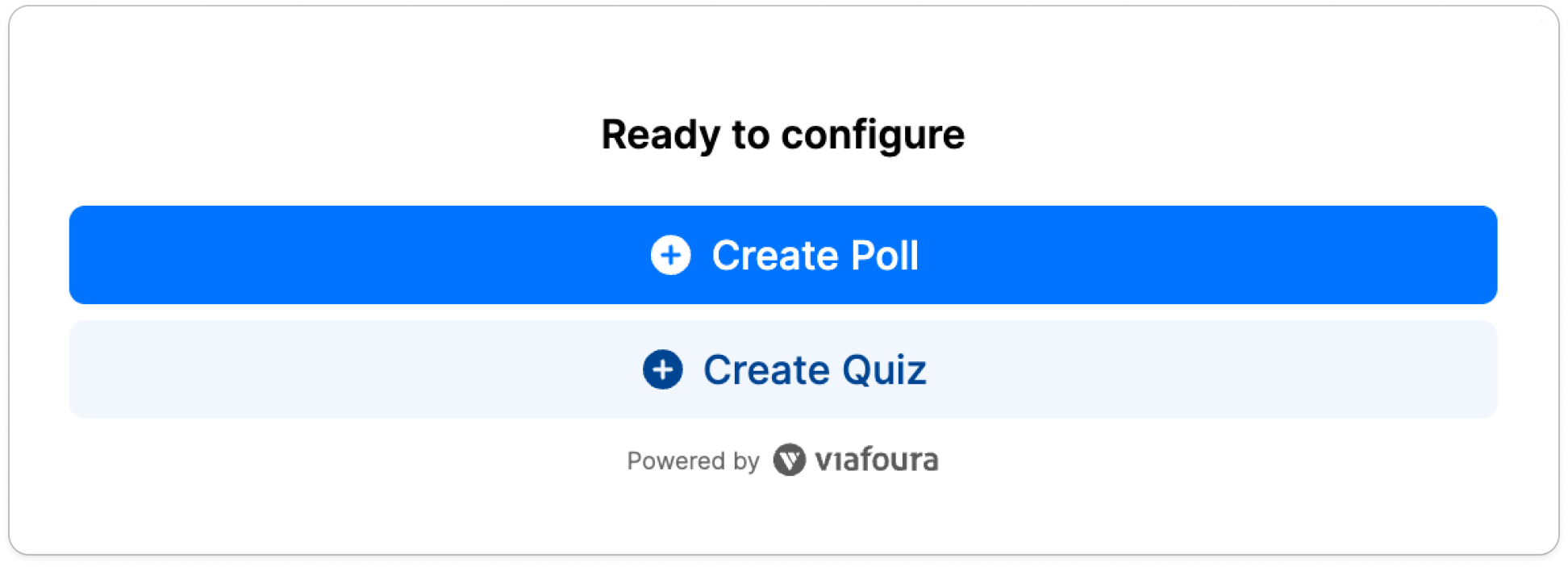
Until Quizzes are enabled, the setup container only offers Create Poll. Once they are enabled, a Create Quiz option appears next to it.
If Quizzes are later turned off for your site, only the creation of new quizzes stops. Existing quizzes stay live and unchanged, and turning Quizzes off does not change when voters are shown the correct answer.
To Create a New Quiz
Viafoura Quizzes use the same implementation as Polls and require the Viafoura script to be present on the page where the Quiz will appear. Refer to our Getting Started guide for instructions.
In your CMS, create a new article or event page where the Quiz will appear.
In the article body, at the position you want the Quiz to appear, paste the following code snippet:
<vf-poll class="viafoura"></vf-poll>If your publishing platform does not automatically generate a unique container ID for the event, include it manually:
<vf-poll class="viafoura" vf-container-id="[UNIQUE-ID]"></vf-poll>
Note
Each Quiz/Poll must have a unique ID to correctly load and track the event data.This can be derived from the article slug, date, or a manually assigned identifier.
Launching a Quiz
Once the Poll tag is properly added to the page:
- Load the page using an Admin/Staff-level account.
- The Quiz/Poll setup container will automatically appear for users with sufficient permissions. Select Create Quiz (available once Quizzes are enabled for your site — see Enabling Quizzes).
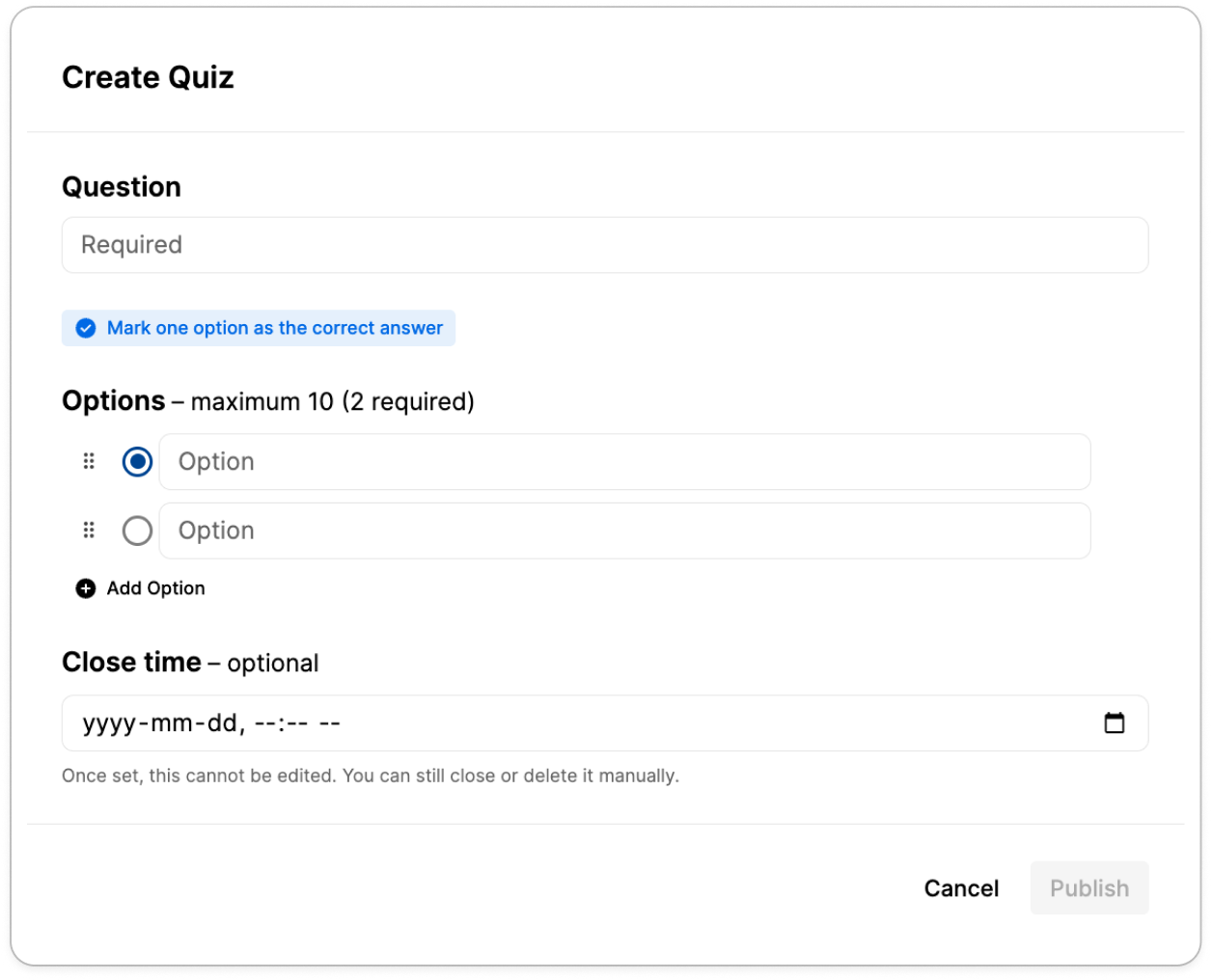
From this setup container, staff can configure the details. - Once the setup is successfully completed ('Publish'), the Quiz will initialize and become visible to your audience for participation.
Configure the Quiz
Quiz Question & Options
Enter the question you want to ask your audience, along with the possible answers. A minimum of 2 and a maximum of 10 answer options are supported. Answer options can be reordered by dragging them into position before publishing.
Character Limits:
Quiz Question: 120 characters
Each Answer Option: 100 characters
*A character counter will appear once you are within 10 characters of the limit and will remain visible if the limit is exceeded. The poll cannot be published while any field is over its limit.
Selecting the Correct Answer
Every Quiz requires one answer option to be marked as correct before it can be published. During Quiz setup, select the correct response from the available answer options.
Only one option can be designated as the correct answer.
Quiz Close Time
When creating a quiz, you can optionally set a date and time for the quiz to automatically close. Once the close time is reached, the quiz will stop accepting responses and results will be revealed to the audience. If no close time is set, the quiz will remain open for responses indefinitely until you manually close it. Note that once a close time has been set, it cannot be edited, though you can still close or delete the quiz manually at any time.
Managing the Quiz
Closing vs Deleting a Quiz
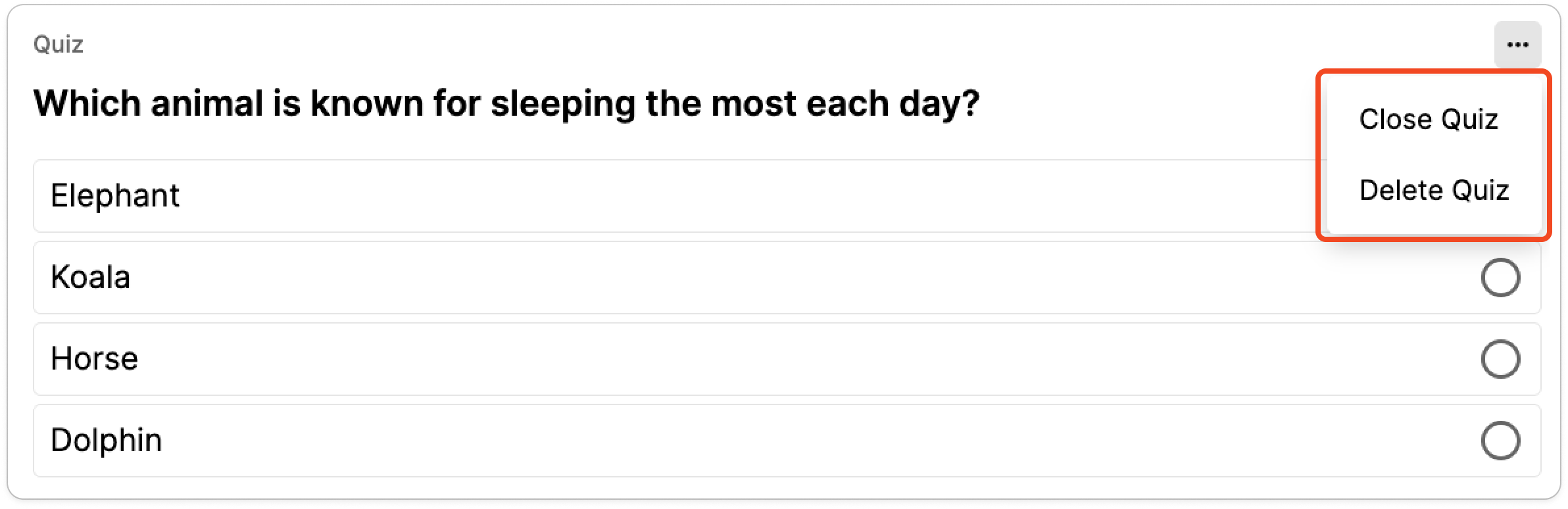
Closing a quiz stops it from accepting new responses. The quiz remains visible to your audience and results are displayed to anyone who views it. This is useful when a quiz has run its course but you still want the results to be accessible on the page.
Deleting a quiz removes it from view entirely. The audience will no longer see the quiz on the page.
In both cases, all vote data is retained and saved.
Quiz Display and Overflow
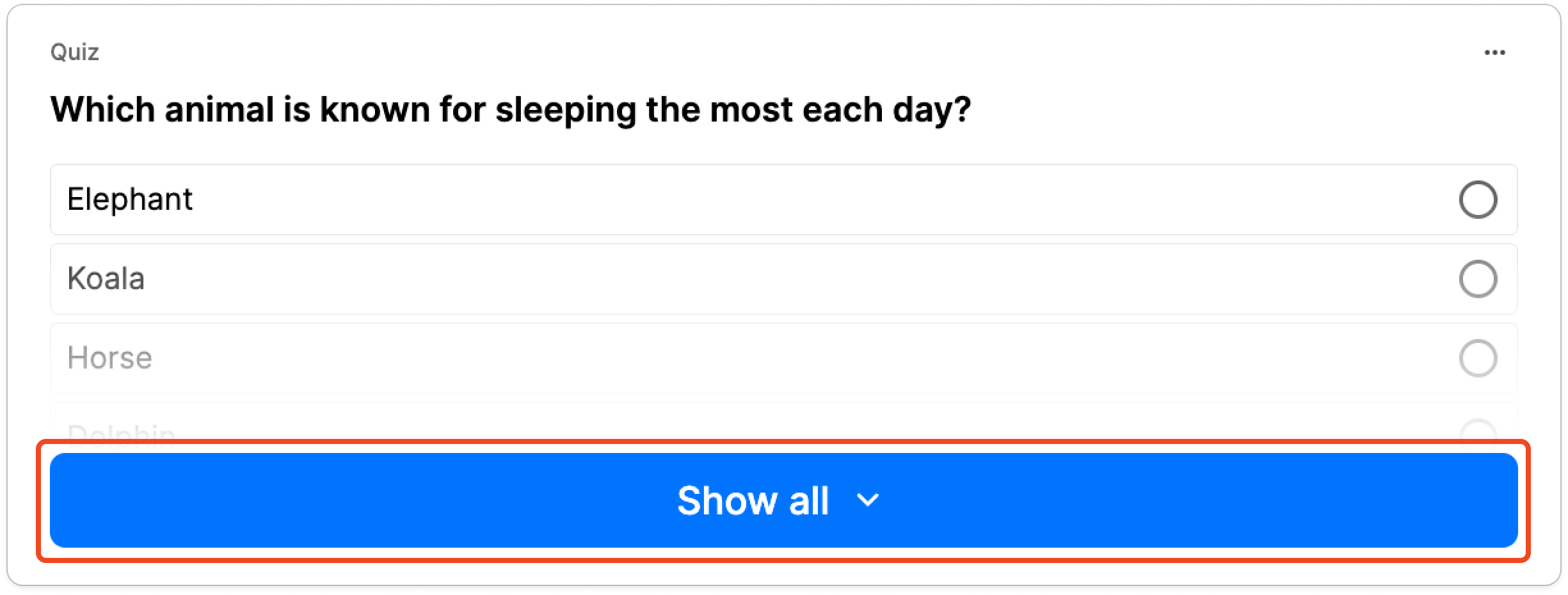
When a quiz exceeds 270px in height, the answer choices will be displayed in a collapsed state with a "Show all options" prompt for the audience to expand them. This can be triggered by a combination of factors including longer questions, lengthy answer options, or a higher number of options. Keep this in mind when creating quizzes — if you are using many options or longer answer text, your audience may need to take an extra step to see all available choices before responding.
Quiz Results
After a user submits an answer, the Quiz can display results immediately or after authentication, depending on the site’s Polls settings in the Admin Portal.
When results are shown:
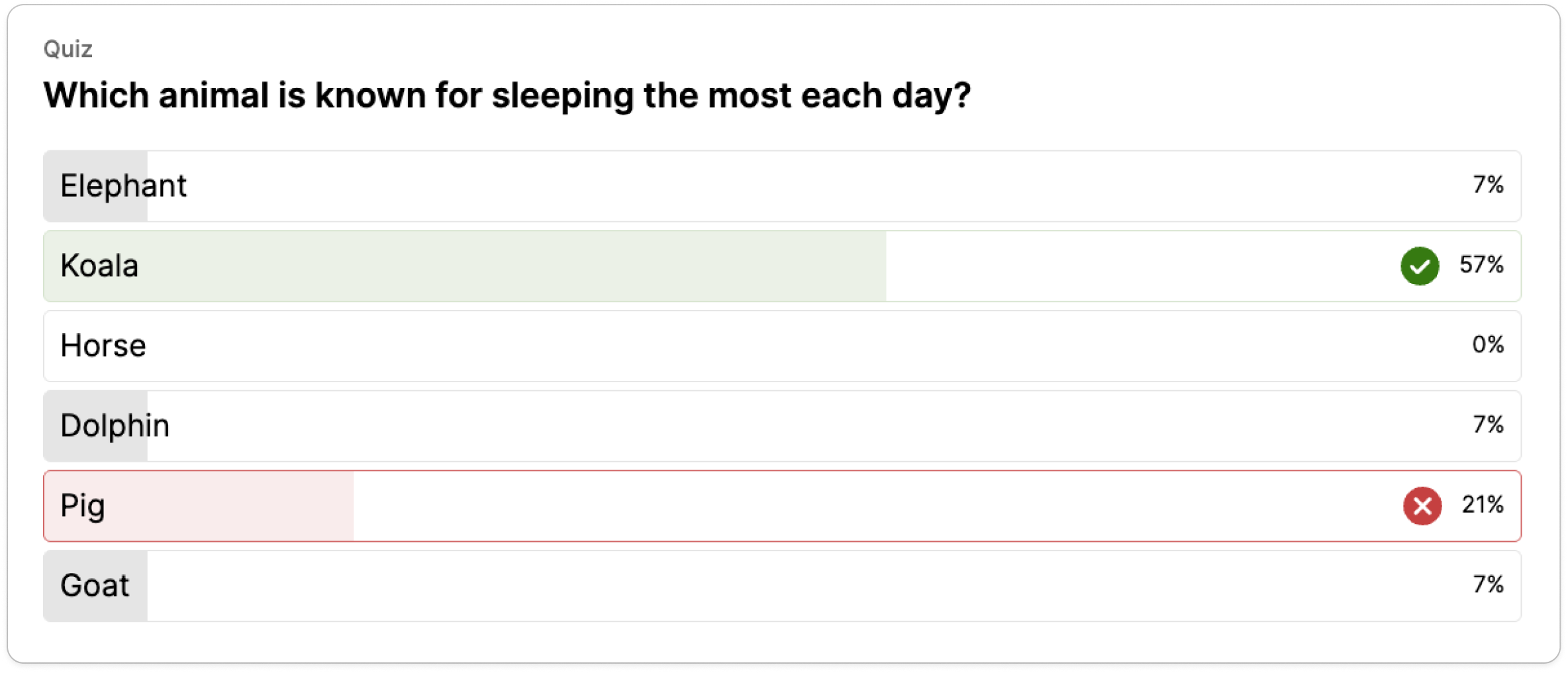
- The correct answer is highlighted in green with a checkmark.
- If the user selected an incorrect answer, their selected option is highlighted in red with an X.
- Other answer options remain grey/neutral.
- The percentage of total responses for each option is displayed alongside the answer.
Quizzes follow the same result visibility and authentication settings configured for Polls.
Advanced Options

Anonymous Voting
Use anonymous quizzes when voter confidentiality is required. When enabled, votes cannot be traced back to individual user accounts.
Enabling anonymous voting overrides the Require user authentication to vote setting. Users will not be prompted to log in before responding, even if that setting is turned on in the Admin portal.
The Require user authentication to see results setting is unaffected and will continue to behave as configured.
Disclaimer: Since responses are not tied to a user account, the same person can respond again by refreshing the page, switching browsers, using a different device, or clearing their cookies.
Admin Portal Settings for Quizzes
Authentication requirements for quizzes is a site-level behaviour managed through the Polls module in the Viafoura Admin portal. These settings apply across all polls on the site.
The following settings are available:
- Require user authentication to vote: When enabled, only logged-in users can respond. Anonymous visitors will not be able to participate.
- Require user authentication to see results: When enabled, only logged-in users can view quiz/poll results. This setting works independently of the 'Require user authentication to vote' setting — for example, you can allow anonymous responses/voting while still restricting results to logged-in users only.
- Allow creation of anonymous polls: When enabled, anonymous voting can be selected as an option during quiz/poll setup. This allows responses to be collected without being traced back to a user account. Note that enabling this setting does not automatically make all quizzes/polls anonymous; it simply makes the option available when configuring individual quizzes/polls.
The Allow creation of quizzes setting, which turns Quizzes on for a site, is managed by Viafoura and is not available to customer administrators. See Enabling Quizzes to request it.
Updated 7 days ago