
Multi-Factor Authentication for Admin Console
We have introduced additional security for admin and moderator accounts when logging into the Viafoura admin console by adding an option to require multi-factor authentication (MFA) using an authenticator app code generator method.
Initially, this feature will be optional and can be turned on only by request. If you wish to have MFA enabled for administrators and moderators on your domains, please contact [email protected]. Once activated the login process for the admin console will change for all admin and mod level users, and they will be required to set up MFA using an authenticator app on their next login attempt.
Once activated, administrator or moderator level users will be prompted to set up MFA when logging into the Viafoura console using the following steps:
-
Go to admin.viafoura.co in your browser. Note: if you already use a bookmark to access the admin console, you may need to update your bookmark with the URL above. You will be taken to the new login page as shown in the screenshots below.
-
Enter your domain, email and password as usual to sign in, and you will see a prompt to set up MFA
-
Scan the QR Code or copy the MFA key and enter it into your authenticator app of choice e.g. Google Authenticator App on your mobile device or Authenticator extension for Chrome (https://authenticator.cc/)
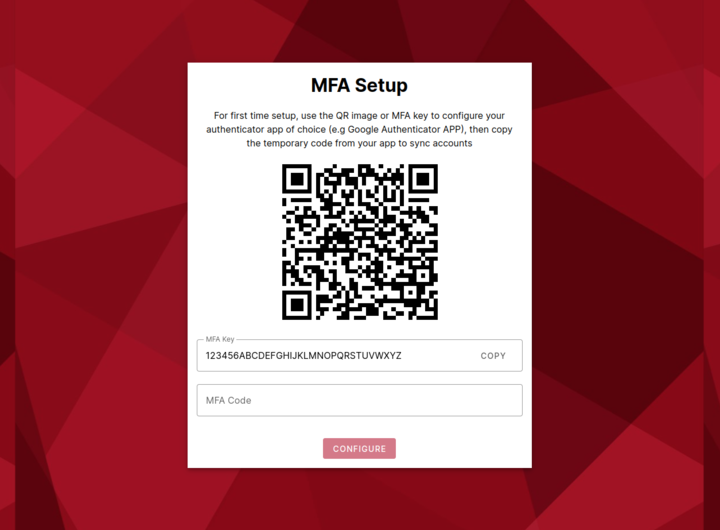
Example Code
-
Copy the temporary code from the authenticator app and enter it into the admin MFA page. This will verify the code and sync the accounts
-
Once the accounts are synced, you will need to get another temporary code to complete the login process
MFA Account ResetIf you need to reset the MFA link to your admin or mod account, please submit a request to your CSM or to Viafoura Support.
Updated about 3 hours ago